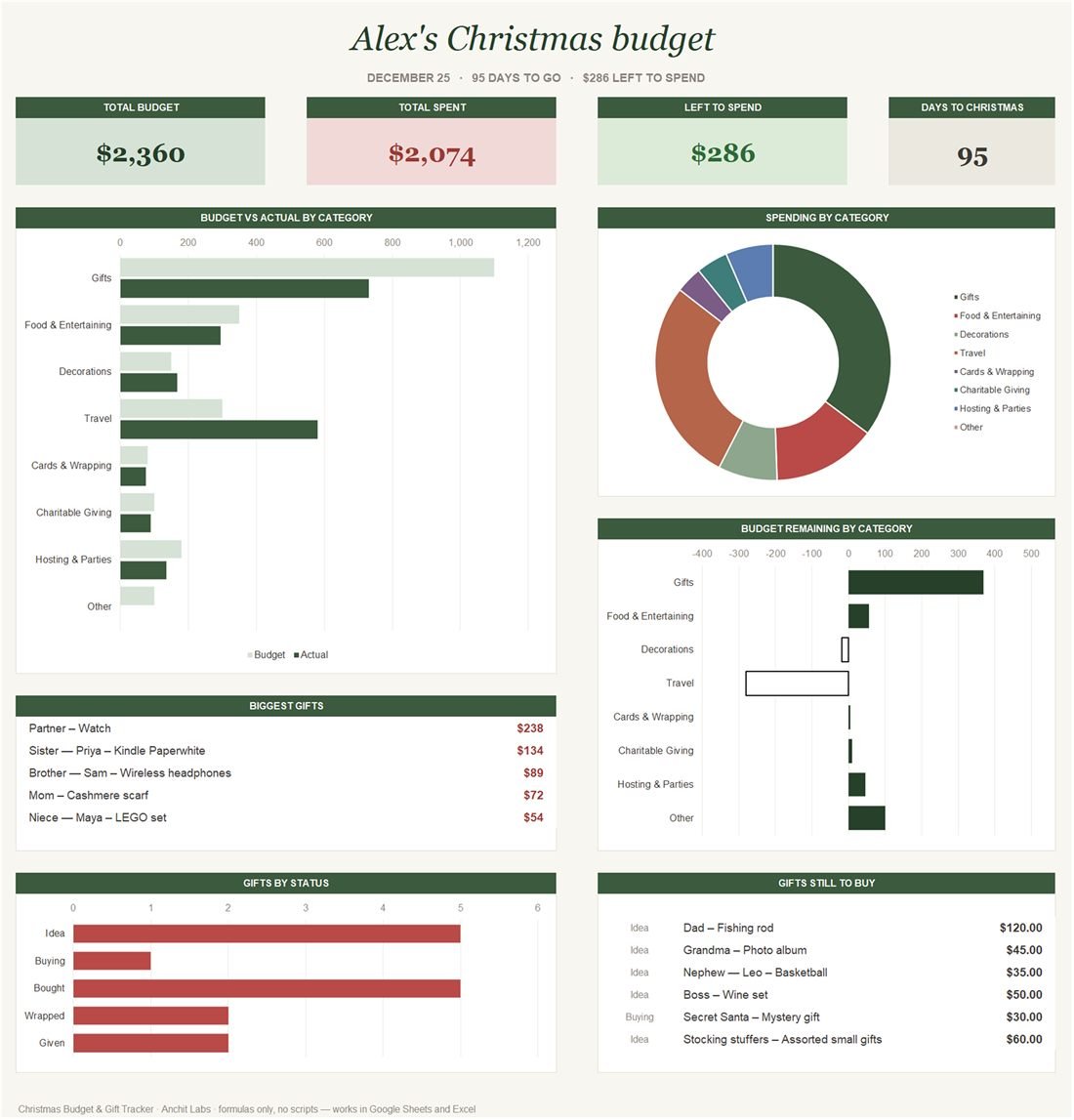
Set a budget per category and the dashboard shows what you planned, what you have spent and what is left, alongside a countdown to Christmas Day, your biggest gifts and the ones you still need to buy.
What is inside
5 tabs, all formulas — no macros, no add-ons, nothing to enable. It arrives filled in with sample data so you can see what each part does before you type anything.
01
Dashboard
Total budget, total spent, left to spend and days to Christmas. Budget against actual by category, spending by category, gifts by status, budget remaining, your five biggest gifts and the six still to buy.
02
Setup
Your name, currency symbol, the date of Christmas Day and budgets for eight spending categories.
03
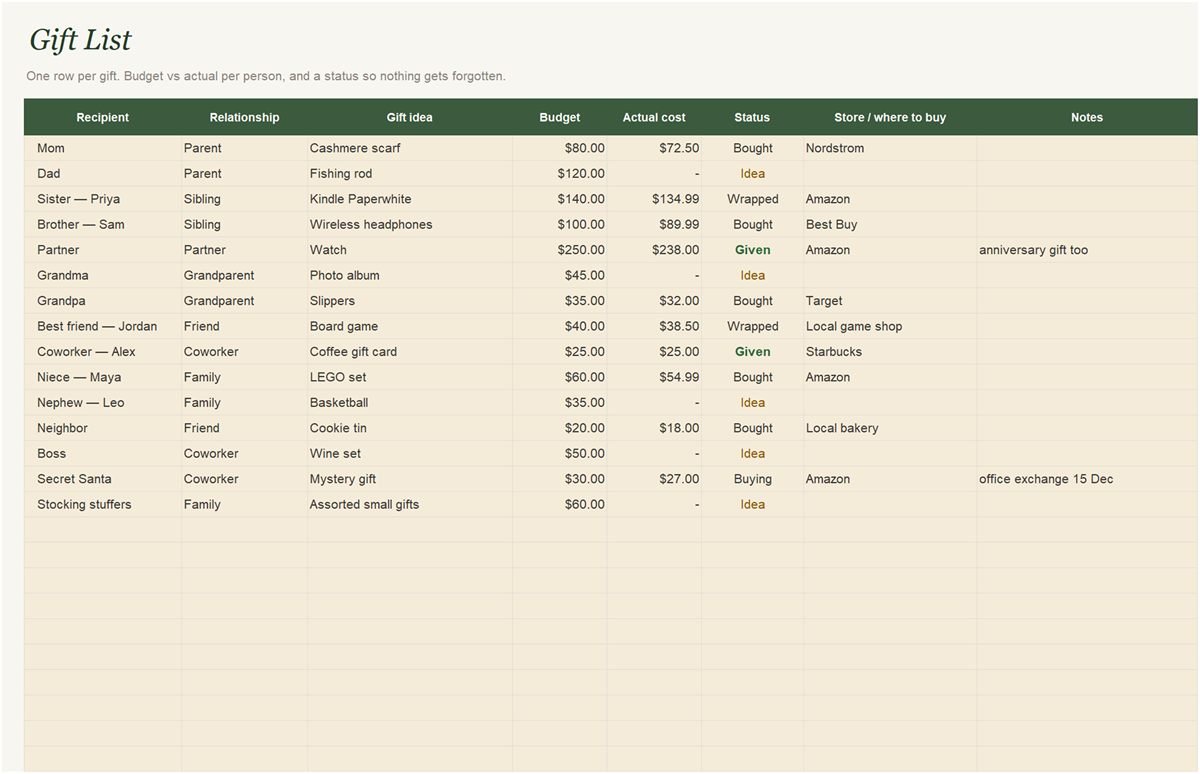
Gift list
Thirty rows: who it is for, how you know them, the gift idea, the budget, the actual cost, where to buy it and a status that moves from Idea to Buying, Bought, Wrapped and Given.
04
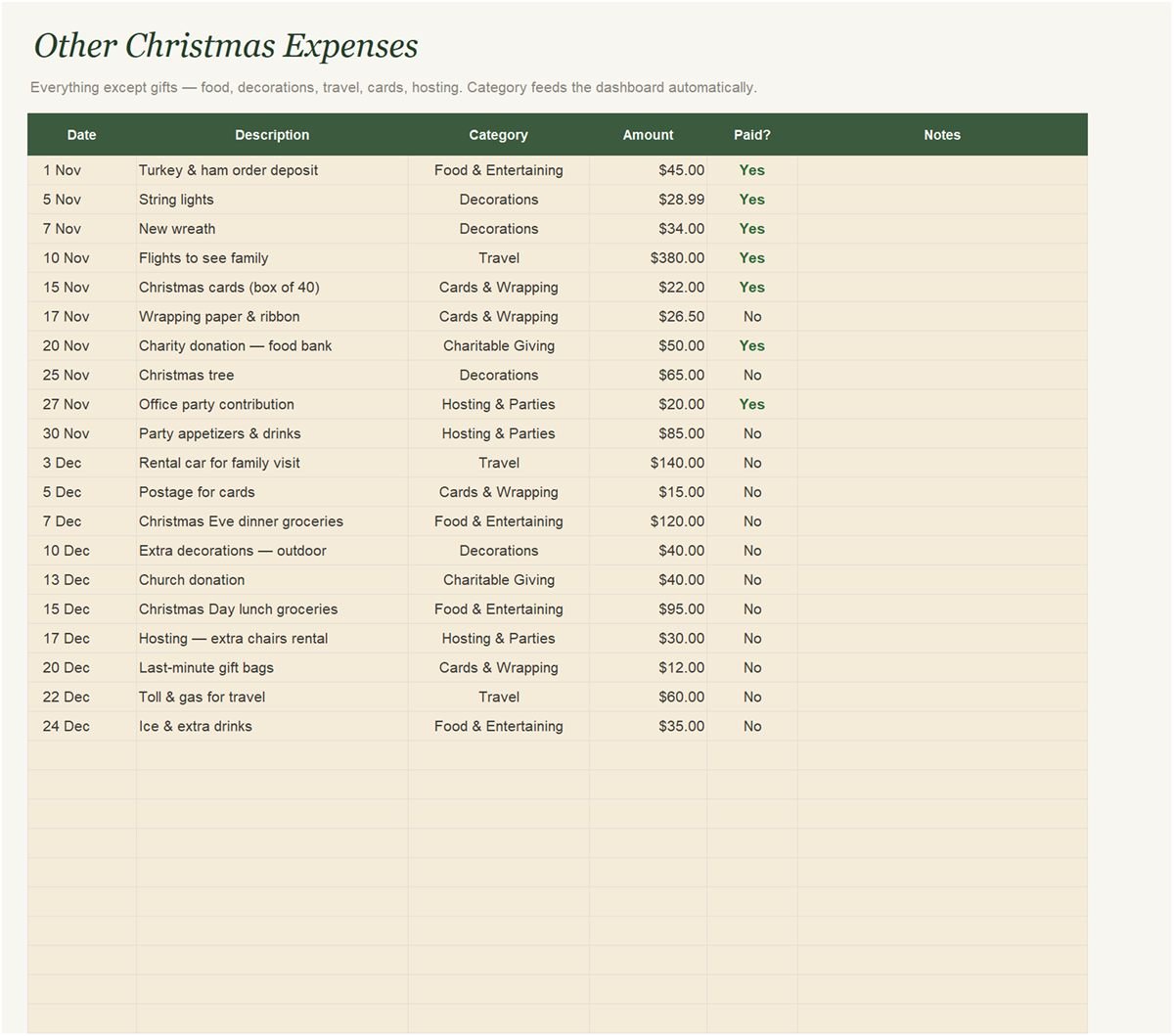
Other expenses
Forty rows for everything except gifts: food and entertaining, decorations, travel, cards and wrapping, charitable giving and hosting, with a category dropdown and a paid tick.
How to set it up
- On the Setup tab, enter your name, currency symbol and a budget for each category. Christmas Day is already filled in.
- Add one row per gift on the Gift List, with a budget, and update the status as you shop.
- Log every other holiday cost on the Other Expenses tab as it happens.
- Check the Dashboard to see what is left in each category and which gifts are still to buy.
Gold cells are yours to fill in. White cells are calculated, so leave those alone, and do not delete the hidden Data tab: it feeds the charts.
Download the Christmas Budget & Gift Tracker
Opens in Excel 365 or Excel 2021 on Windows and Mac. For Google Sheets, upload it to Google Drive, open it with Google Sheets and choose File → Save as Google Sheets.
Questions
Is the Christmas budget template free?
Yes. Download the .xlsx and use it. No sign-up, no email.
Does it work in Google Sheets?
Yes. Upload the file to Google Drive, open it with Google Sheets and choose File → Save as Google Sheets. It also works in Excel 365 and Excel 2021.
Can I use it again next year?
Yes. Save a copy, clear the gift list and expenses, and change the date of Christmas Day on the Setup tab. The countdown and dashboard reset themselves.
Can I use it for Hanukkah, Diwali or another holiday?
Yes. Change the date on the Setup tab to your holiday and rename the categories; the budgets, gift list and countdown all work the same. The titles still say Christmas, and you can retype those too.
I am buying for more than 30 people. What then?
Right-click a row number inside the gift list and choose Insert to add rows. The totals include them.