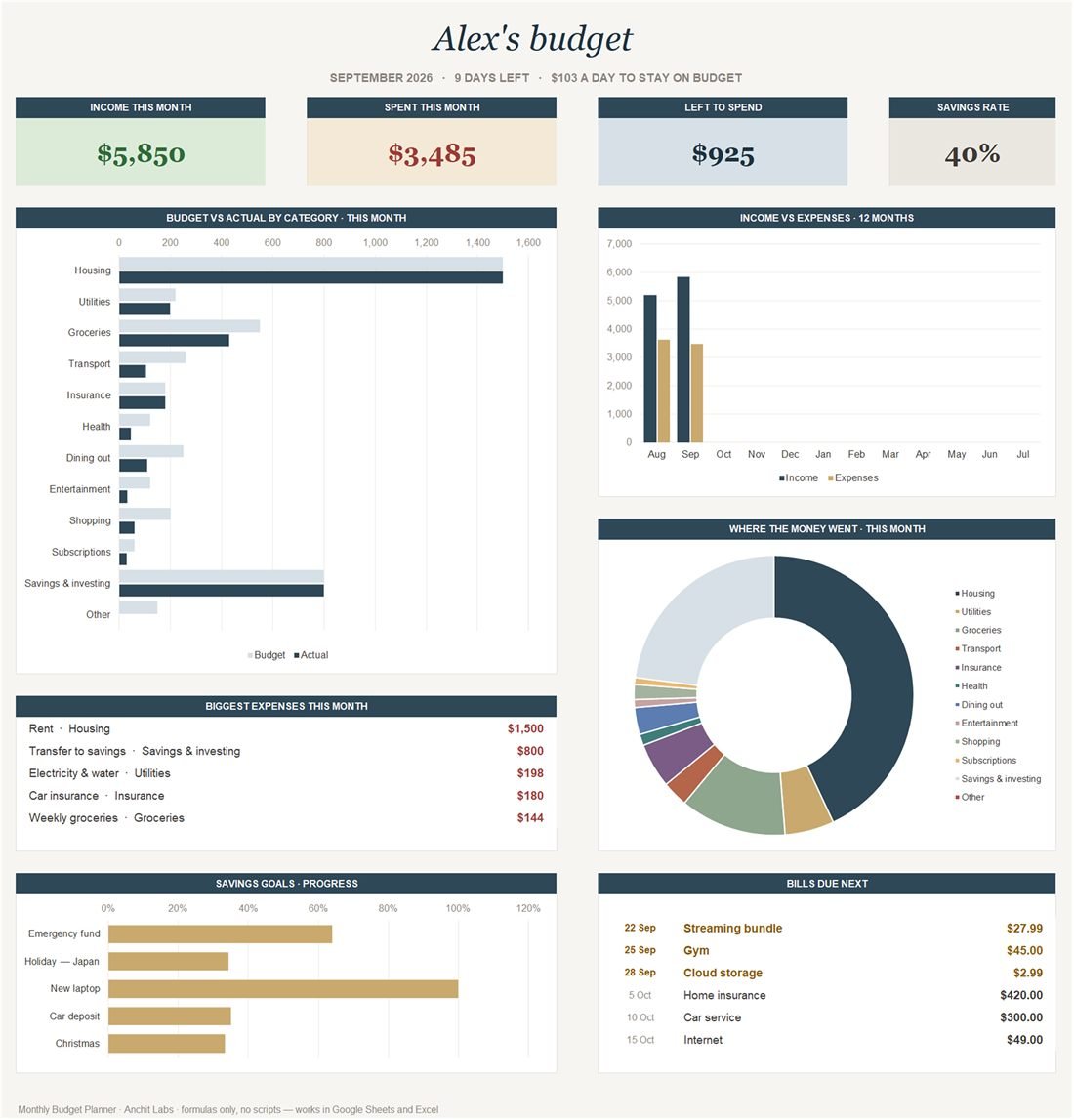
It opens on a dashboard with four live charts and a one-line answer to the question most budgets never give you: how much you can spend per day for the rest of the month and still land on budget.
What is inside
7 tabs, all formulas — no macros, no add-ons, nothing to enable. It arrives filled in with sample data so you can see what each part does before you type anything.
01
Dashboard
Income, spent, left to spend and savings rate for the current month. Budget against actual for each category, twelve months of income against expenses, where the money went, your biggest expenses, the bills due next and progress on each savings goal.
02
Setup
Your name, currency symbol, the month you start, your planned income, and up to 16 spending categories with a monthly budget each. Rename the categories to whatever you actually spend on.
03
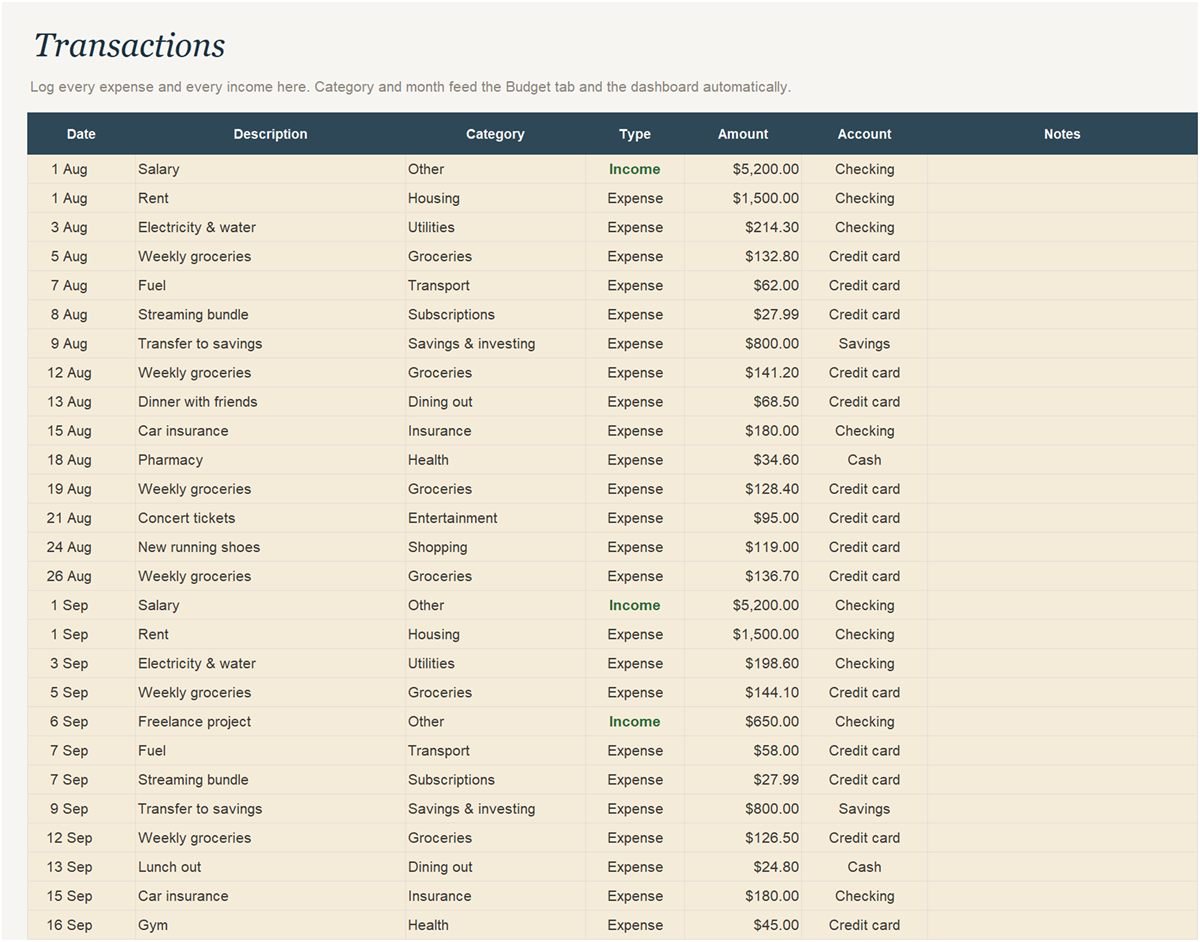
Transactions
The only tab you touch day to day: 300 rows, with dropdowns for the category, the type (expense or income) and the account it came from.
04
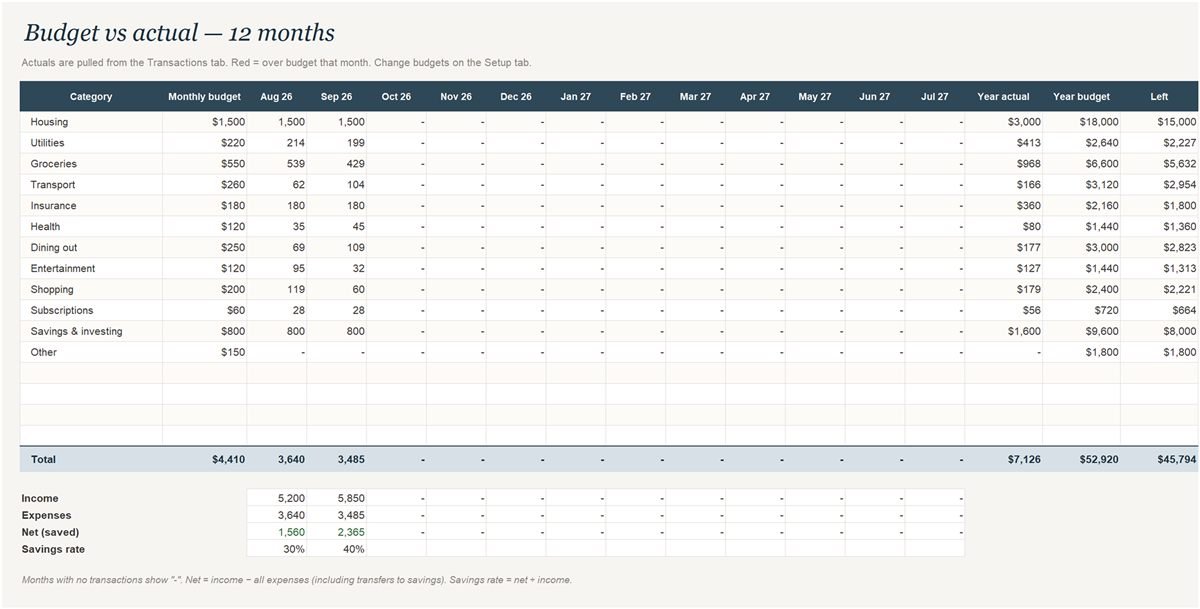
Budget
Every category across all twelve months, pulled from your log. A month that runs over budget turns red, and each month shows income, net and savings rate.
05
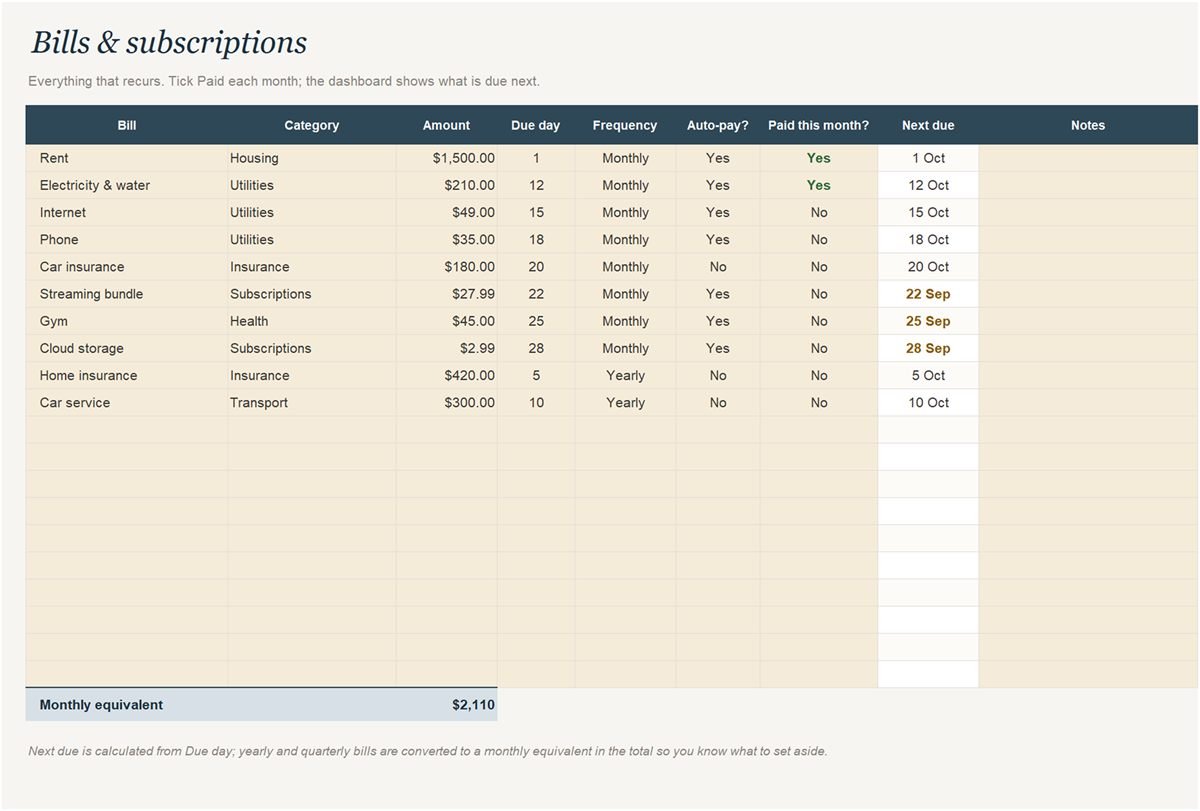
Bills
Recurring bills and subscriptions with the due day, how often they repeat, whether they are on auto-pay, a paid tick, and the next due date worked out for you.
06
Savings goals
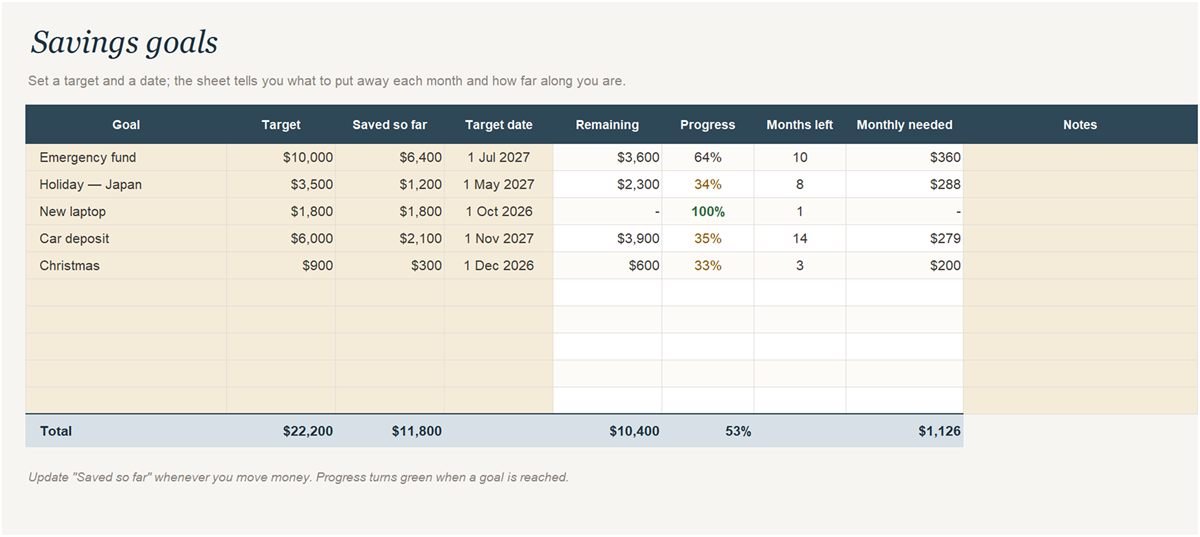
A target, what you have saved so far and the date you want it by. The sheet shows what is left, the percentage done, the months remaining and how much to put aside each month.
How to set it up
- Open the Setup tab and enter your name, currency symbol, starting month, planned monthly income and a budget for each category.
- Add one row on the Transactions tab for every expense or income: date, description, category, type, amount and account.
- List each recurring bill once on the Bills tab with its due day, and tick it off as you pay it.
- Add any savings goals with a target and a date. The sheet works out the monthly amount needed.
- Read the Dashboard for this month, and the Budget tab for all twelve months side by side.
Gold cells are yours to fill in. White cells are calculated, so leave those alone, and do not delete the hidden Data tab: it feeds the charts.
Download the Monthly Budget Planner
Opens in Excel 365 or Excel 2021 on Windows and Mac. For Google Sheets, upload it to Google Drive, open it with Google Sheets and choose File → Save as Google Sheets.
Questions
Is the budget template really free?
Yes. Download the .xlsx and use it as much as you like for your own budget. There is no email form, no account and no trial.
Does it work in Google Sheets?
Yes. Upload the file to Google Drive, open it with Google Sheets, then choose File → Save as Google Sheets. Charts, dropdowns and colour rules all carry over. It also works in Excel 365 and Excel 2021 on Windows and Mac.
Can I use my own currency?
Yes. Type your currency symbol once on the Setup tab — $, £, €, ₹ or any other — and the dashboard and headings use it.
Are there macros?
No. Everything is ordinary formulas, so there is nothing to enable and no security warning beyond Excel's usual Protected View bar for downloaded files.
What about the sample data?
The file arrives filled in with an example month so you can see what every chart does. Type over it with your own numbers. Gold cells are for you; white cells are calculated, so leave those alone.
Does it work in Apple Numbers or LibreOffice?
Not reliably. Some of the formulas and charts it uses are not supported there, and the same goes for Excel 2016 and older. Google Sheets is free and works fully.